You need to record what a meter, a VFD or a controller does for a week, but you can't leave a laptop on site. A Raspberry Pi is the right tool: small, cheap, low-power, and it runs 24/7 without complaint.
This guide shows how to build a complete Modbus data logger with a Raspberry Pi and ModLens. It reads Modbus TCP and RTU devices, saves the values to daily CSV files that open in Excel, and shows a live dashboard you can open from any phone or PC on the network. If the power goes out, it restarts and resumes logging by itself.
What you need
| Part | Notes |
|---|---|
| Raspberry Pi 4 or 5 (2 GB is enough) | A Pi 3B+ also works for a few devices |
| microSD card, 32 GB, "high endurance" type | Endurance cards last much longer with constant writing |
| Official power supply | Cheap supplies cause random reboots |
| USB to RS-485 adapter (for Modbus RTU only) | FTDI or CH340 chips work out of the box on Linux; choose an isolated one for industrial panels |
| Network cable or Wi-Fi | For Modbus TCP devices and to open the dashboard |
| Optional: DIN-rail case, small UPS HAT | For panel installs and ride-through on power cuts |
Only Modbus TCP devices? You don't need the RS-485 adapter at all.
Why not wire RS-485 straight to the GPIO pins? The Pi's serial pins use 3.3 V logic, not RS-485 levels. You would need a transceiver board (MAX3485 or an RS-485 HAT) and some configuration. A USB adapter is simpler and more robust. See Modbus with Arduino and Raspberry Pi for the GPIO route.
Wiring the RS-485 bus
- Connect the adapter's two data terminals to the bus: A to A and B to B. Labels vary between brands (+/−, D+/D−, 485+/485−). If nothing answers later, swap the two data wires first: it's the most common mistake and it doesn't damage anything.
- Connect GND / common if the adapter has it. It prevents many intermittent errors.
- Put a 120 Ω termination resistor at the two physical ends of the bus only (many adapters have a switch). Short bench cables usually work without.
- Every device needs a different unit ID and the same baud rate, parity and stop bits.
The full details (topology, biasing, cable, troubleshooting) are in our Modbus RS-485 wiring guide.
1. Prepare the Pi
- Flash Raspberry Pi OS Lite (64-bit) with Raspberry Pi Imager. In the Imager settings, enable SSH, set a username and password, and set up Wi-Fi if needed.
- Start the Pi and connect from your PC:
ssh youruser@raspberrypi.local
2. Install ModLens
Download the ModLens Linux package, copy it to the Pi and run the installer:
scp modlens-linux.zip youruser@raspberrypi.local:~
ssh youruser@raspberrypi.local
sudo apt install -y unzip
unzip modlens-linux.zip -d modlens && cd modlens
sudo bash tools/pi/install.sh
The installer sets everything up as a service: ModLens starts at every boot and restarts by itself if anything goes wrong. Add --sim to also install the simulator (see the bonus section).
3. Open the dashboard
With ModLens Pro, from any PC, tablet or phone on the network:
/opt/modlens/.venv/bin/python /opt/modlens/run_modlens.py --activate YOUR-LICENSE-KEY
/opt/modlens/.venv/bin/python /opt/modlens/run_modlens.py --set-password a-strong-password
sudo systemctl restart modlens
Then open http://<pi-ip-address>:8502 and sign in.
Free version: open it through an SSH tunnel from your PC:
ssh -L 8502:127.0.0.1:8502 youruser@raspberrypi.local
Then open http://127.0.0.1:8502 on your PC while that window stays open.
4. Choose what to log
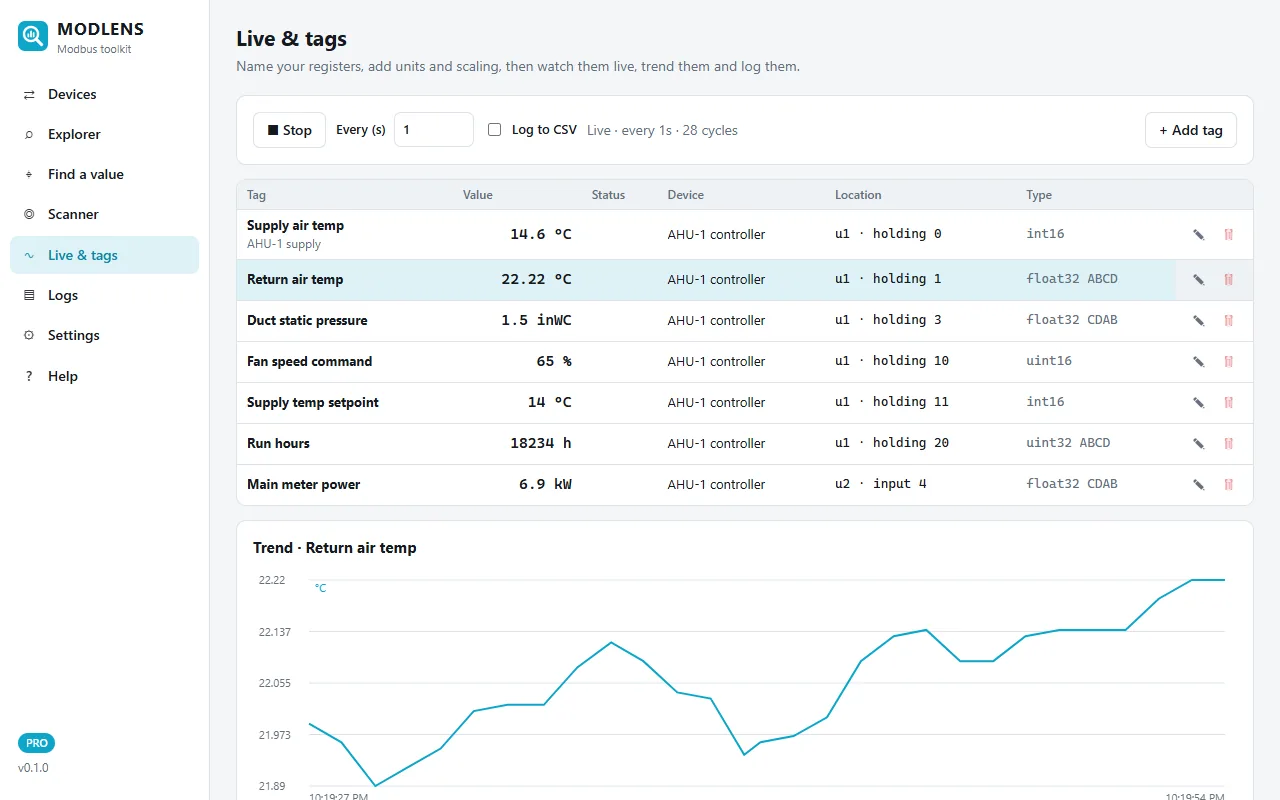
- Devices: add your Modbus TCP device (IP address) or the RS-485 bus. On the Pi the serial port is usually
/dev/ttyUSB0. The stable name fromls /dev/serial/by-id/is even better. - Scanner: no register list? Find the unit IDs and which registers exist.
- Find a value: type the number shown on the device display. ModLens finds the register, data type, byte order and scale.
- Explorer: read a block of registers. Real measurements are highlighted; click one to make it a tag.
- Live & tags: give each tag a name, unit, scale and alarm limits.
- Click Start live, then turn on Log to CSV.
That's it. After a reboot or a power cut, the Pi restarts and monitoring and logging resume by themselves.
5. Get the data
- Logs page: download the CSV files (one per day, one column per tag). They open directly in Excel.
- Or copy them over the network:
scp youruser@raspberrypi.local:~/ModLens/logs/*.csv . - Old files are deleted automatically after 90 days (adjustable) so the SD card never fills up.
Tips for a reliable logger
- Give the Pi a fixed IP address (DHCP reservation in the router) so the dashboard link never changes.
- Timestamps need the right time. The Pi syncs automatically when it has internet; on isolated networks, add a small RTC clock module.
- Logging every 1 to 10 seconds is plenty for most building and energy work and keeps files small.
- Check the service anytime:
systemctl status modlens, live log:journalctl -u modlens -f. - Some devices are picky: ModLens has per-device options for max registers per read, write with function 16 only and a pause between requests.
Bonus: turn a Pi into Modbus test devices
ModLens Sim simulates one or many Modbus devices. Use it to test a BMS or SCADA integration before the equipment arrives, to train technicians, or to demo dashboards.
sudo bash tools/pi/install.sh --sim-only
It creates an example with an AHU controller, a power meter and a tank with live weather data. Manage everything from the web page at http://<pi-ip>:8090:
- Values that move like real equipment: sine waves, slow random drift, counters (kWh, run hours), sequences, and on/off schedules (07:00–18:00, Monday to Friday).
- Or real data: replay a recorded day from a CSV or Excel file at any speed, follow a JSON file another program updates, or poll a web API.
- Modbus RTU too: plug a USB to RS-485 adapter into the Pi, enable RTU in Settings, and the Pi answers as real RTU devices on the bus.
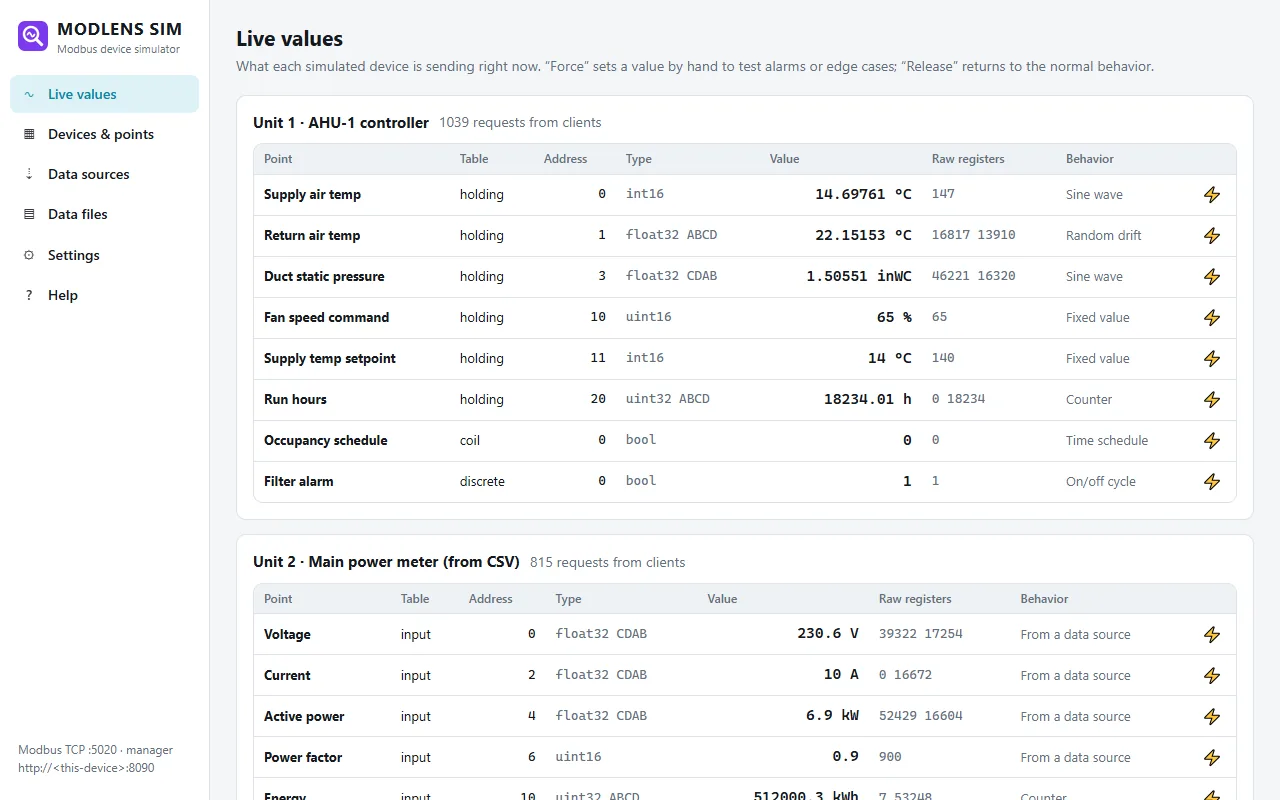
Clients can write registers (setpoints, commands) and the written value is kept, just like on a real device. Learn more on the ModLens Sim page.